This guide is to help those with the basic features of the game. It will explain how to equip items, weapons, and add icons to your sub palette. This guide is unfinished, you can make suggestions on what should be added to this guide in the comments section.
[Menu Guide] [Options Guide] [Basic Guide] [Open Beta Guide]
Table of Contents
- Player Stats
- Item Pack
- Shop Locations
- Shop Menu
- Equipping Weapons and Photon Arts
- Equipping Shields
- Setting the Sub Palette

Press [ESC] to reach the main menu. Click on the fourth icon "マイデータ" (My Data) and the top option "キャラクター情報" Character Information to view your player stats.

Character Stats
- HP: Health Points
- PP: Photon Points (For using Technics or Photon Arts)
- 打撃力 Striking Power
- 射撃力 Range Power
- 法撃力 Tech Power
- 技量 Ability/Skill *
- 打撃防御 Striking Defense
- 射撃防御 Range Defense
- 法撃防御 Tech Defense
Ability is a damage stat. If your ability stat is high, you'll do more damage. The ability stat isn't well researched at this point. It is possible that it affects the range of damage you would do to an enemy. For example instead of doing 60 ~ 80, you'd do 70 ~ 80 damage. Your ability stat needs to be higher than the enemy's to do more damage.

The Item Menu is the pop up window to the left.
Press [I] on your keyboard to access the menu quickly!
When you click on items in your item pack, a menu will pop up. Depending on the item you choose, this menu will be slightly different. If you have too many items while in a quest, choose the second option with the little arrow next to it to send the item to storage.
- 使う Use
- 倉庫に預ける > Place in Storage
- ロック: Lock items from selling.
- ステルス化: Stealth (Turns of Unit graphics)
- ウィッシュリストに入れる Place in Wish List
- プレゼントリストに入れる Place in Present List
- 置く Drop on the Field*
- 捨てる Discard
*Only certain items can be dropped on the field. The Lock button is shown for certain items.

Shop Locations
The main lobby is split into two floors, the first floor is much brighter containing a Weapon Shop, My Room Shop, and Costume Shop. The second floor is darker containing the Quest Counter, and class changing areas.

Shop Menu
- アイテムを買う : Purchase Items
- アイテムを売る: Sell items
- 倉庫へアイテムを買う: Buy items to storage
- 倉庫からアイテムを売る: Sell Items from storage
- 買い戻す: Buyback previously sold items.

Buying / Selling in Bulk
When you are in the Buy or Sell screen, you can buy items in bulk by pressing the + or – signs. When you are finished, press the left blue button. The button left button will either show 購入 or 売却 (Buy or Sell) depending on the menu.

Other Icons and Technics

Main Menu
Press [ESC] to reach the main menu. the second icon (装備) will have three entries
- 武器装備 Equip Weapons
- 防具装備 Equip Shields #shield
- サブパレット: Sub Palette #subp

Equip Weapon Screen
The equip weapon screen lets you equip items to your weapon palette and add photon arts or technics. We highly suggest using the mouse to navigate this menu. The left window in the screenshot above has 3 tabs above the item list. (Note the orange color shows the current tab).
1st tab: Weapons / 2nd tab: Photon Arts / 3rd tab: Technics.

Weapon Palette
- 1: Weapon: Set a weapon in this slot
- 2: Normal Attack icon
- 3: Photon Art Slots: Set 3 photon arts for your weapon.
- 4: PA Technic Back Palette: When using Force or Ranger weapons, you can switch to the back palette to access photon arts or technics.
- 5: Copy/Paste: Lets you copy or Paste a palette.

Photon Art Discs
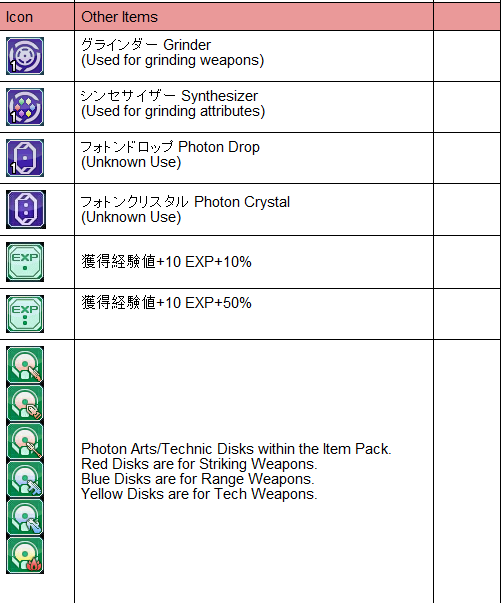
During your quests, you can pick up photon art disks that lets you learn new photon arts and technics. Each photon art disc has a level attached; if you currently have a photon art that's above the disc's level, it will be grayed out in the item pack.
Click on a photon art disc and press the top entry to use the item. As shown in the screenshot above, a window will pop up illustrating the gain in power for that Photon Art. Return to the Equipping Weapons menu to add that photon art to your weapon palette.

PSO2 uses units to add defensive stats to your character. There are three unit slots you can use; Rear, Arm, and Leg. Sub units can be equipped to any of the three slots, whereas other units can only be equipped to a specific slot.

Costume and 3 Units [Rear] [Arm] [Leg]
Units are visually distinctive by their purple icons.

The sub-palette is displayed at the bottom of your screen during quests. Of these ten slots for the sub palette, you can place items, skills, and photon blasts. The window that pops up when you click on a slot has two tabs. The first tab (indicated in orange) is for your items, while the second tab is for skills.
[banner art by [8]BitGinno]